Highlights, notes and bookmarks
Open a saved document, select text, then use Annotations → Highlight Selection or Add Note. You can also Control-click the selection and choose a highlight color, or press Control–Command–H to add a yellow highlight. Add Document Note creates a note about the document as a whole; Bookmark Passage saves the current passage.
Choose the bookmark-shaped Annotations button, then Show Annotations… to view, edit, delete, or revisit saved entries. The document selector can show annotations for other documents in your local library. Notes accept multiple paragraphs; Command–Return finishes editing. Annotation Undo and Redo apply to saved annotation changes separately from text editing.
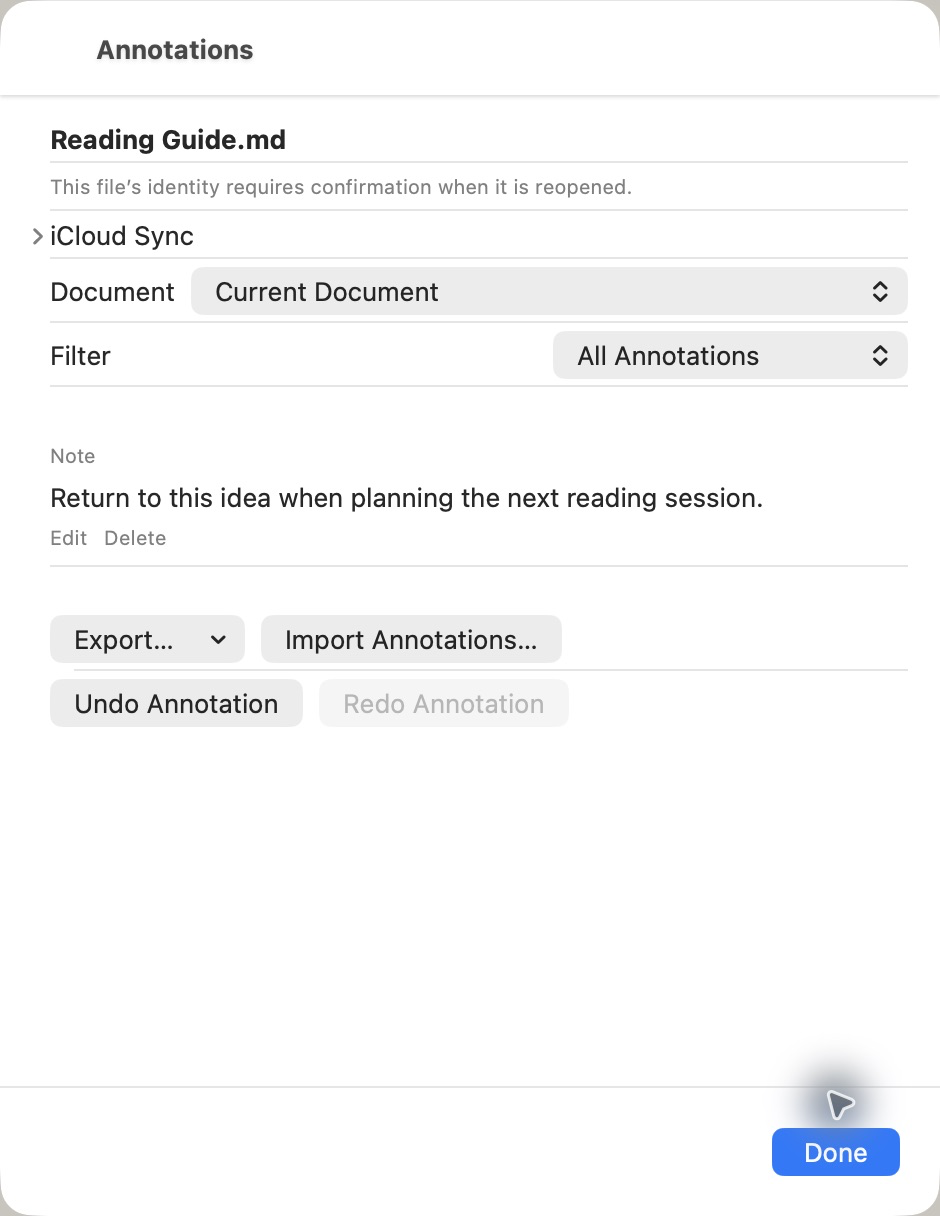
Annotations are stored separately from the original file. The list includes document selection, filters, and annotation archive controls.
After a document changes, an annotation's passage may need attention. Use Unresolved Passages to find these entries, then Reattach to Current Passage when appropriate. If file identity cannot be confirmed, choose Link Existing Annotations… or Treat as a Separate Document. GlyphGlance asks before joining uncertain copies.
Use Export… → Export Document Annotations… or Export Annotation Library… to save an annotation archive. Import Annotations… previews the archive and lets you review destinations and conflicts before applying it. Archives contain annotation text and notes: share them only with intended recipients. PDF, Word, and EPUB exports contain document content, without this annotation library.