Scan PDFs for Chemistry
Find chemical names and printed structure drawings in a PDF with on-device AI assistance, validate them independently, and inspect the source page beside the results.
Start a document scan
Choose Scan PDF in Library, or Add > Scan PDF for Chemistry in a document. Select a PDF from Files or another provider. The scan opens above your current screen; Back returns there. Cancelling the file picker leaves that screen unchanged.
The selected PDF remains read-only. Scanning does not change the source document.
For PDFs longer than 10 pages, choose the first and last page before scanning. The default is pages 1–10; All Pages selects the complete document. Thumbnails help choose a range. Results keep the original PDF page numbers.
- Select a result to reveal and highlight it on the PDF page. Text uses its source range; a drawing uses its instance mask and bounding box.
- Drag the handle between the PDF and results to give either side more room. VoiceOver users can adjust the divider with swipe up or down.
- Tap result rows to build a multi-selection, or use Select All to select every visible result.
- Use the PDF zoom controls and the search field to focus on terms of interest. Tap a highlighted PDF region to reveal its result row; an active filter can hide that row.
- Show only rows with validated IUPAC names is enabled by default. Turn it off to review untranslatable text candidates and recognized drawings without an identity-matched name.
- Import into Managed Repository unifies selected confirmed structures exclusively by Fixed-H InChIKey, skips and reports selected occurrences without that identity, skips structures with that identity already present, and records the scanned PDF filename as the source filename for each addition.
- After importing scan results, View Library takes you to the saved structures. Clear a search or filter if the new items are not visible. Back instead returns to the screen from which you started scanning.
- The result table lists occurrences in document order. A nearby identity-matched name and drawing share one row; repeated independent occurrences remain separate.
What happens during a scan
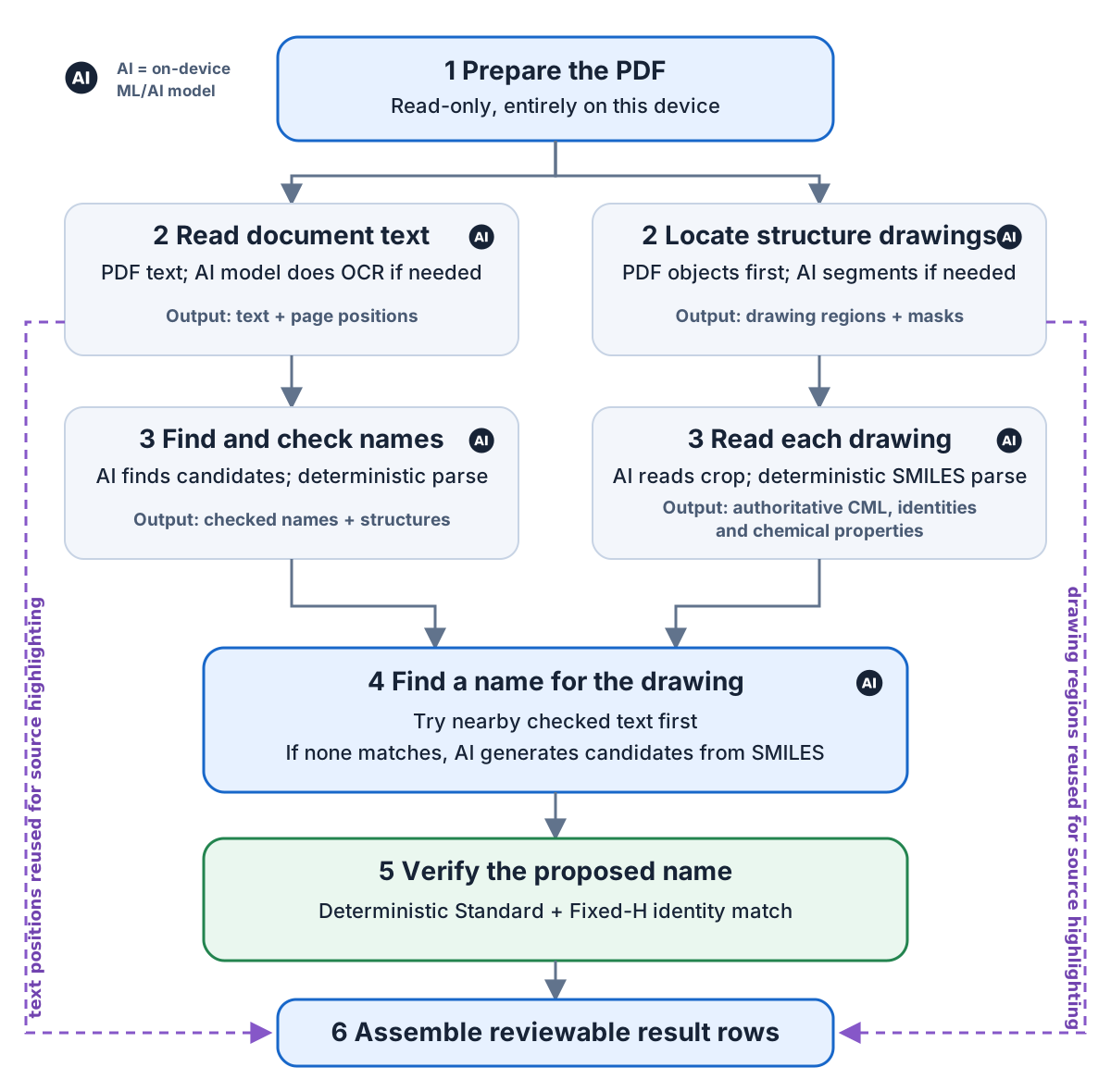
The scan uses a series of on-device steps. Intermediate results are reused so that names, drawings, validation, and source highlighting remain connected.
AI-assisted processing: on-device machine-learning models perform OCR fallback, chemical-name recognition, drawing segmentation and recognition, and fallback name generation. Reading embedded PDF objects, parsing chemical descriptions, calculating properties, comparing identities, assembling results, and highlighting the source are deterministic steps.
- Prepare the PDF: read embedded text and its page positions; use an on-device AI model for OCR only on pages without usable text.
- Find names: an on-device AI model detects likely chemical names; AtomLens cautiously repairs PDF text and line wraps, then a deterministic name parser checks each candidate.
- Locate drawings: inspect embedded image and vector objects first; use an on-device AI segmentation model locally or across a full page only when needed.
- Read drawings: an on-device AI model converts each crop to SMILES, which AtomLens independently and deterministically parses into the authoritative structure, Standard and Fixed-H identities, and available properties.
- Attach a name: try nearby detected names first, then use a separate offline AI model to generate candidates from the recognized SMILES only if needed. Deterministic name parsing must reproduce both drawing identities before AtomLens accepts a name.
- Assemble results: combine a matching nearby name and drawing into one row, preserve all source positions, and use them for highlighting, preview, filtering, and import.
Read validation and structure previews
An embedded AI language model finds candidate names, and deterministic name parsing checks them independently. AtomLens first locates printed drawings from the PDF's own image and vector objects. An AI segmentation model examines suitable objects or runs as a full-page fallback, and an AI drawing-recognition model converts padded crops to SMILES, which AtomLens parses independently.
- Green Translated results were accepted by deterministic name parsing and include a structure thumbnail.
- Green Adjacent name results combine an AI-recognized drawing with a nearby text name whose Standard and Fixed-H identities match.
- Green Generated name results use an offline AI model only after no nearby name matches; deterministic name parsing must reproduce both drawing identities before the name is shown.
- Green Recognized drawing results are printed drawings whose AI-recognized SMILES parsed as a structure but for which no name passed the identity check.
- Orange Not translated results are possible names or detected drawings that could not be converted. AI recognition is not ground truth, so review the highlighted PDF source before relying on them.
Accuracy, privacy, and offline use
Scanned pages, unusual fonts, diagrams, damaged PDF character maps, multi-column layouts, and adjacent labels can still produce missing, split, or combined candidates.
Printed-drawing recognition is intended for printed structures, not hand-drawn input. Dense pages, labels, reaction schemes, rasterization, and poor scans can still cause missed or false drawing results.
The PDF, extracted text, AI-assisted name recognition, AI segmentation, AI drawing recognition, AI-assisted name generation, deterministic structure validation, and thumbnails are processed on this iPad. All ML/AI models and tokenizers ship inside AtomLens; no model or document content is downloaded or uploaded at runtime.